Ticket System
CoSTAR Support Portal User Guide
This guide explains how CoSTAR cluster users should use the support portal to submit a support ticket.
What the Portal Is For
Use the portal to send support requests to the CoSTAR support team. The form validates the information you enter and forwards the request to Surrey’s ticketing system OneSurrey.
You will need your Surrey Account Credentials to access the portal.
Portal URL: support portal
Note
Attachments cannot be uploaded through the portal. If you need to send screenshots, logs, or code files, reply to the confirmation email after you submit your request. That confirmation will be sent either to your main Surrey email address or to the Communication Email address if you provide one.
Portal Overview
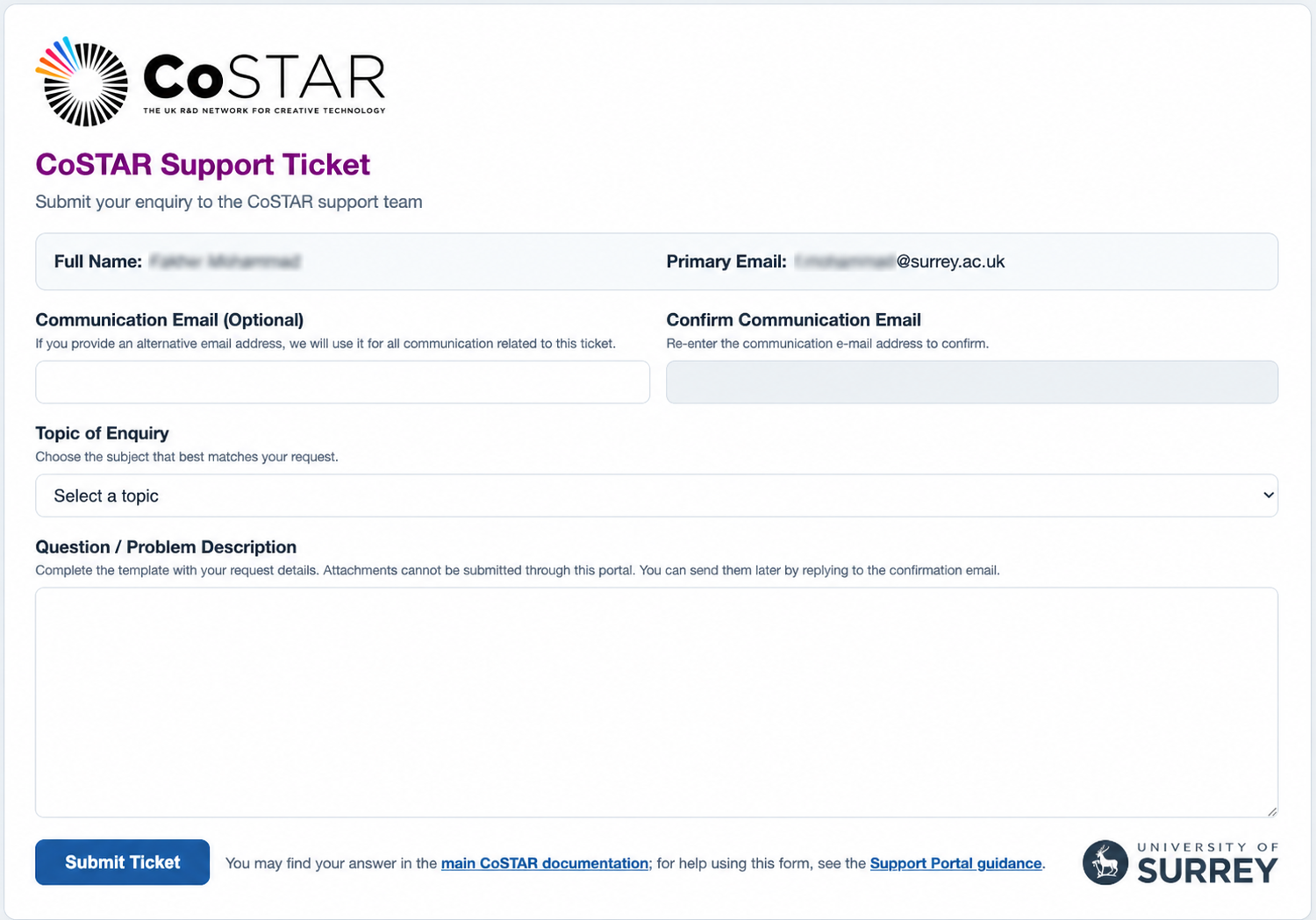
How to Submit a Request
Open the CoSTAR Support Portal in your browser.
Sign in with your University of Surrey account if prompted.
Check the
Full NameandPrimary Emailshown at the top of the form.If you want communications and confirmation sent to a different email address instead of your main Surrey email address, enter it in
Communication Email (Optional)and repeat it inConfirm Communication Email.Choose the
Topic of Enquirythat best matches your request.Complete the text inserted into
Question / Problem Descriptionwith the details of your issue or request.Select
Submit Ticket.A confirmation email will be sent to your
Primary Emailor, if provided, yourCommunication Email.
Note
Communication Email is optional. Use it only if you want ticket
communications sent to a second or work email address that belongs to you.
Choosing a Topic
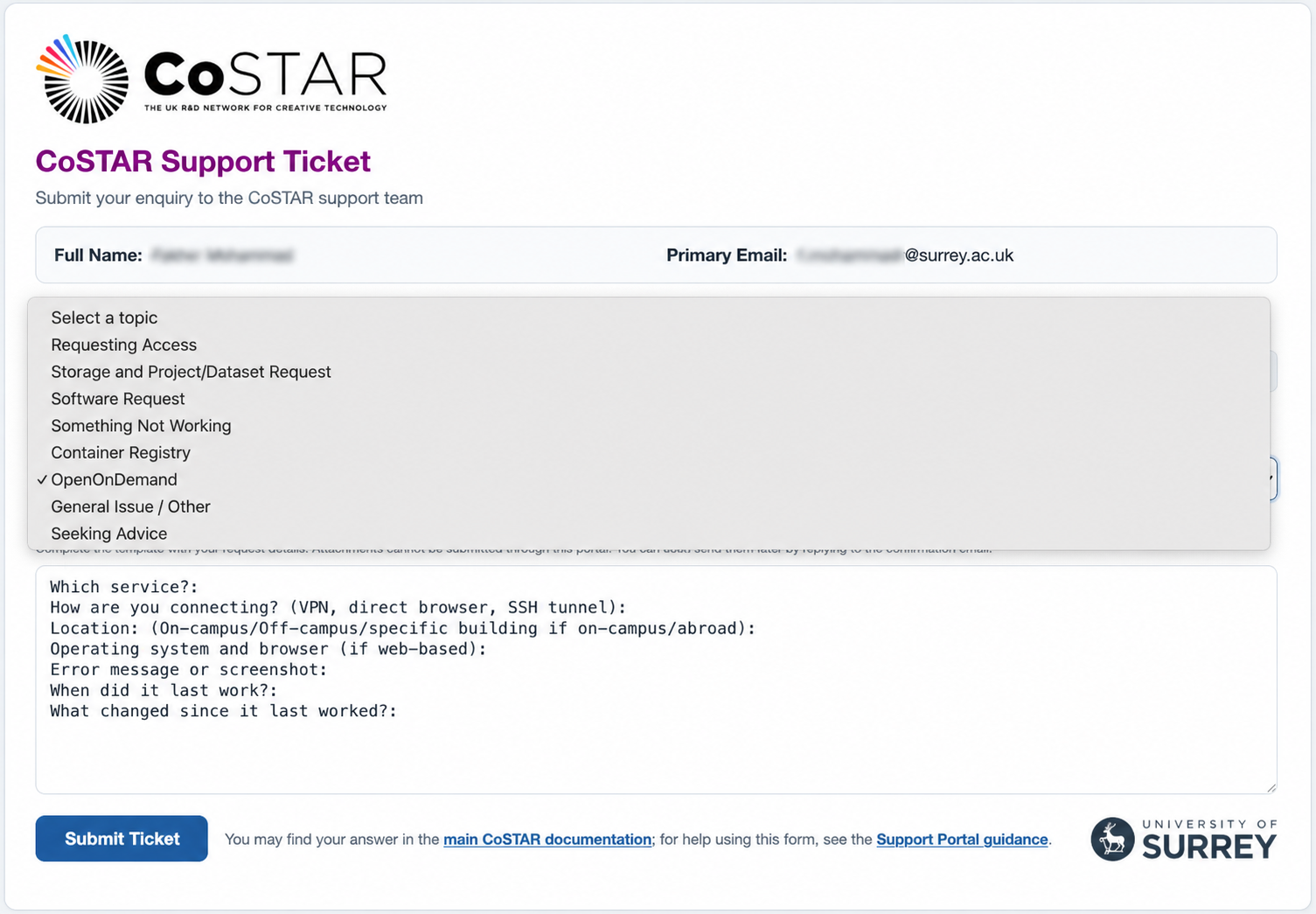
When you open the Topic of Enquiry dropdown, the portal shows a list of request types. Select the one that best matches your issue so the correct template is inserted into the description box.
Available Topic Templates
Choose the template that best matches your request:
Requesting Access: access requests should not be submitted through this portal.Storage and Project/Dataset Request: for project storage, dataset storage, or access changes.Software Request: for software installation requests or problems using software on the cluster.Something Not Working: for job failures, cluster problems, or unexpected technical issues.Container Registry: for problems with image repositories, login, push, or pull actions.OpenOnDemand: for issues using Open OnDemand or related web access services.General Issue / Other: for requests that do not fit the more specific categories.Seeking Advice: for guidance, recommendations, or best-practice questions.
After you choose a topic, the portal inserts a template into the description box for you to complete.
What to Include
Provide enough detail for the support team to understand and reproduce the issue. For example:
what you were trying to do
which dataset, software, job, or service is affected
what happened instead of the expected result
any job IDs, error messages, or relevant timings
Validation Errors
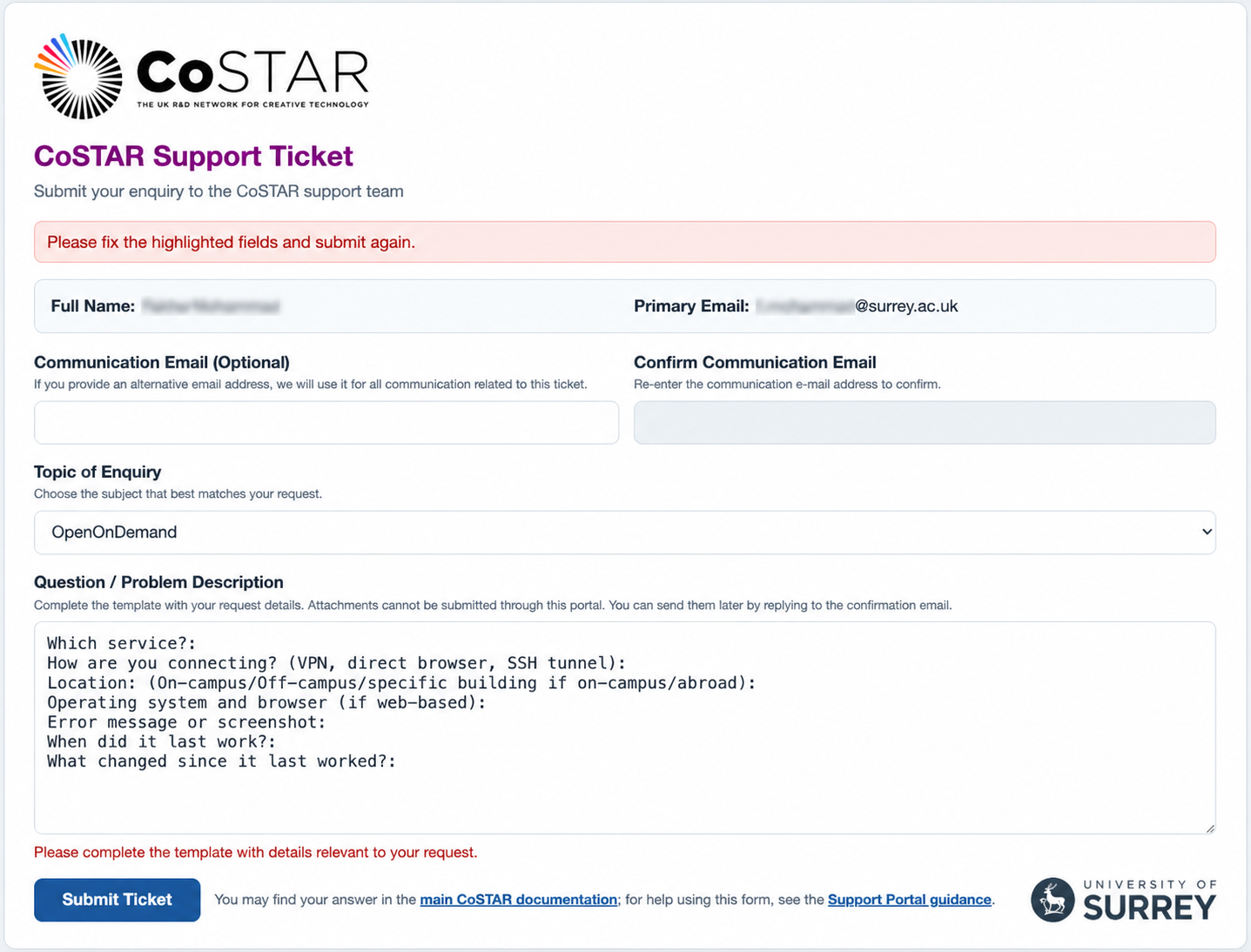
If required information is missing or the inserted template is left unchanged, the portal highlights the problem and asks you to fix the form before submitting again.
After You Submit
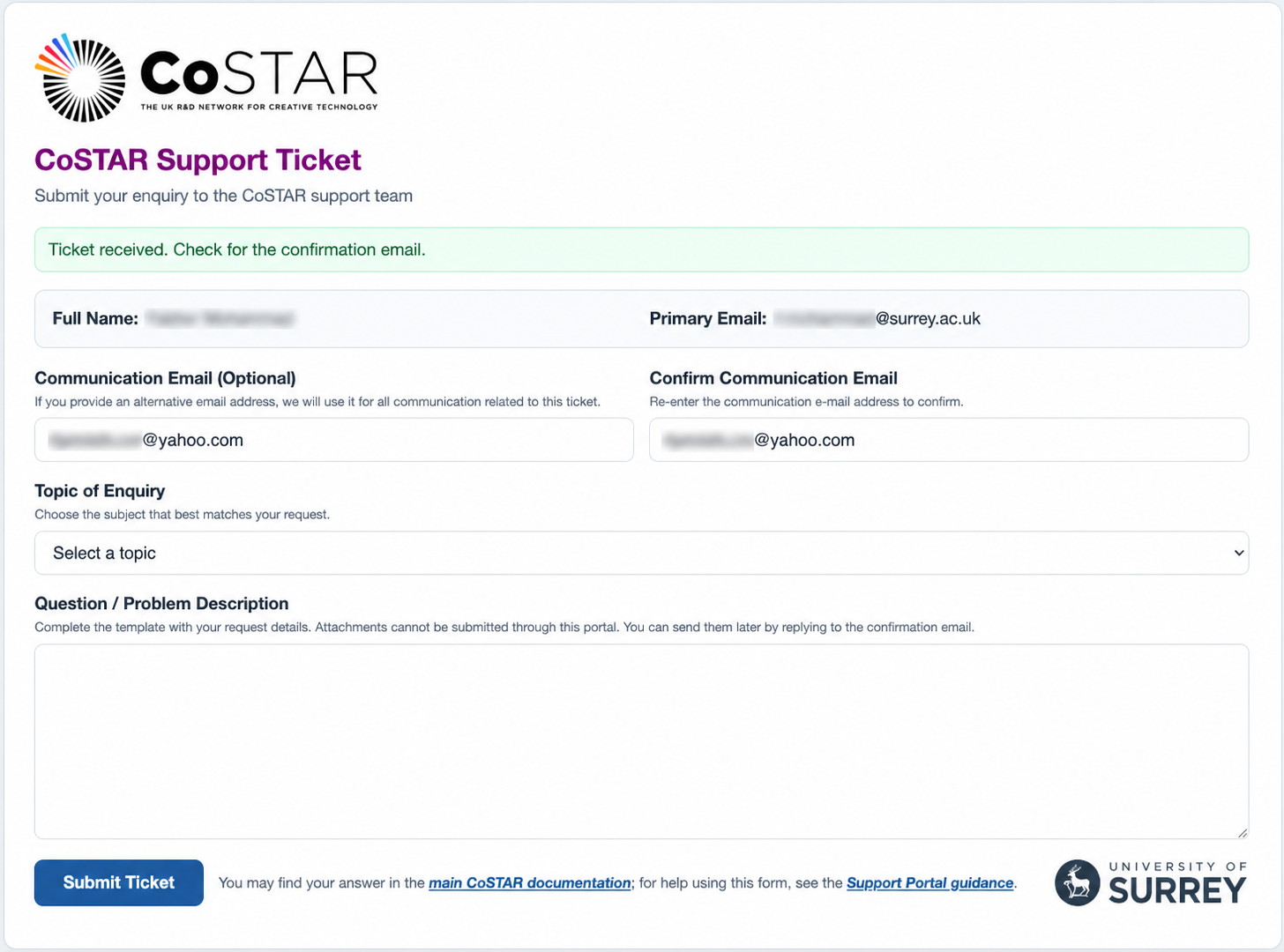
The request is forwarded to OneSurrey.
You should receive a confirmation email with a ticket number starting
OSE-.Communications and confirmation are sent either to your main Surrey email address or to the Communication Email address if you provided one in the form.
If you need to send attachments, reply to that confirmation email.
A successful submission is confirmed by a green message at the top of the form.
Best Practices
These practices help the support team understand, route, and resolve your request efficiently.
Before You Submit
Check the relevant CoSTAR documentation or user guide first.
Search for key phrases from job logs or error messages.
Think about what changed since the task, job, or workflow last worked.
Write a Clear Request
Complete the inserted template with details specific to your issue.
Include exact error messages rather than paraphrasing them.
Provide relevant job IDs, file paths, commands, timestamps, software names, and storage locations where applicable.
Never include passwords, API keys, access tokens, or other sensitive information.
Understand the Support Scope
Consultants can help with system issues, access problems, storage questions, software setup, and scheduler behaviour.
They may offer guidance for building, debugging, or optimising your workflow, but implementation work remains your responsibility.
Response Expectations
It may take couple of days for a consultant to respond, especially if your request is complex.
It may take a few messages before you and the consultant are working from the same understanding of the issue.
If jobs are paused or held by administrators, this is not punitive. When systems are under pressure or at risk, the team may need to act quickly before sending an explanation.