Transferring data to/from HPC storage
There are multiple ways to transfer data to and from the cluster. The main ways are using SCP and rsync, or for Windows users an SFTP client.
Followings are some methods using the command line or GUI tools:
Open OnDemand
If the cluster has Open OnDemand you can log in and use the “Files” feature to manage your files on the cluster via a web interface. This allows GUI-based file transfer, browsing, and editing, which may be preferred by users with minimal Linux experience.
SCP (Linux/macOS)
To securely copy data to a remote host:
To Copy one file
$ scp <path to the file> username@remotehost:/path/to/remotedir/
To copy entire folder
$ scp -r <Directory_to_copy> username@remotehost:/path/to/remotedir/
Tip
Tired of typing your password? See our guide on Generating SSH Keys to learn how to configure passwordless login using cryptographic keys.
Examples:
[abc123@costar-login01 ~]$ scp -r IMPORTANT_DATA abc123@myhost:~
abc123@myhost's password:
DATA_FILE_4.txt                               100%    0     0.0KB/s   00:00
DATA_FILE_3.txt                               100%    0     0.0KB/s   00:00
DATA_FILE_1.txt                               100%    0     0.0KB/s   00:00
[abc123@myhost ~]$ scp -r IMPORTANT_INPUT_FILES abc123@costar-login01:~
abc123@myhost's password:
DATA_FILE_4.txt                               100%    0     0.0KB/s   00:00
DATA_FILE_3.txt                               100%    0     0.0KB/s   00:00
DATA_FILE_1.txt                               100%
Pro-Tip (ProxyJump):
You can combine these steps into a single command from your local machine using the -J (ProxyJump) flag:
ssh -J <username>@access.eps.surrey.ac.uk <username>@costar-login01
rsync (Linux/macOS)
To synchronize a directory from a local machine to a remote machine (or vice versa):
$ rsync -avz <Directory> user@remotehost:/path/to/remotedir/
Why use rsync instead of scp? rsync is faster for repeated transfers because it only sends file changes (deltas), can resume interrupted copies, and preserves timestamps/permissions by default with -a.
Examples:
[abc123@myhost ~]$ rsync -avz IMPORTANT_INPUT_FILES abc123@costar-login01:~
abc123@myhost's password:
sending incremental file list
IMPORTANT_INPUT_FILES/
IMPORTANT_INPUT_FILES/INPUT_FILE_1.in
IMPORTANT_INPUT_FILES/INPUT_FILE_2.in
IMPORTANT_INPUT_FILES/INPUT_FILE_3.in

sent 306 bytes  received 99 bytes  810.00 bytes/sec
total size is 0  speedup is 0.00
[abc123@costar-login01 ~]$ rsync -avz IMPORTANT_DATA abc123@myhost:/user/HS204/abc123/
abc123@myhost's password:
sending incremental file list
IMPORTANT_DATA/
IMPORTANT_DATA/DATA_FILE_1.txt
IMPORTANT_DATA/DATA_FILE_2.txt
IMPORTANT_DATA/DATA_FILE_3.txt

sent 290 bytes  received 92 bytes  69.45 bytes/sec
total size is 0  speedup is 0.00
Caution
PLEASE ENSURE you use the trailing “/” exactly as shown above to avoid overwriting any folders/data, as the rsync command is sensitive to the way in which trailing slashes are used.
Danger
Rsync is very useful for copying, moving and backing up/synchronizing data, but it can be very easy to make a mistake in a command, and slashes in paths make a big difference.
Read a guide to ensure you’re doing exactly what you want (test out commands):
Windows Data Transfer Methods
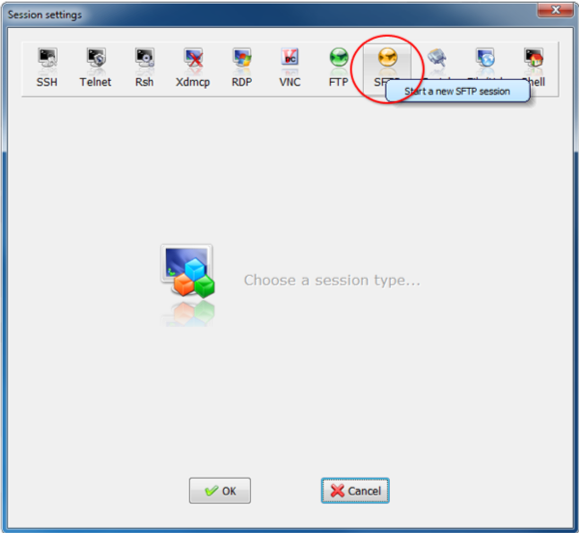
MobaXterm allows you to transfer files to and from a cluster using a built-in terminal, so you can use all previously mentioned rsync and scp commands. It also provides an SFTP (Secure File Transfer Protocol) panel, which enables simple drag-and-drop file transfers between your local machine and the cluster.
Note
Windows-based text editors (e.g. Notepad++) may insert an extra carriage return character (^M) at the end of each line.
This can cause issues for many Linux-based applications.
To fix this, run the built-in dos2unix utility on any ASCII file transferred from Windows to CoSTAR.
Example:
[abc123@costar-login01 ~]$ dos2unix example.txt
dos2unix: converting file example.txt to Unix format ...