HPC Local Storage
The CoSTAR cluster features a dedicated, ultra-high-performance WEKA filesystem. Engineered to handle the heavy read/write demands of AI model training, rendering, and complex simulations, this storage is strictly internal to the cluster and accessible via its private, high-speed network.
Understanding the different storage spaces available to you is critical for managing your data and ensuring your workloads run efficiently.
Storage Overview
Area |
Path |
Quota |
Backup |
Policy / Notes |
|---|---|---|---|---|
User Home |
|
233 GB |
No |
Persistent working space |
Scratch |
|
500 TB (Shared Pool) |
No |
Deleted after 4 weeks of inactivity |
User Home Directory
Persistent personal storage space: /users/<username>
Your home directory is your dedicated working area on the cluster. This space is ideal for storing scripts, input parameters, smaller datasets, and final output files you wish to keep.
Because this space is limited by a strict 233 GB quota, you should regularly transfer important research data, large outputs, or long-term assets back to your local machine, institutional SharePoint, or dedicated project storage.
Warning
Data in your home directory is NOT backed up. It is highly recommended to use version control (like GitLab/GitHub) for all code and scripts developed in this space.
High-Performance Scratch
Temporary, high-speed storage for active jobs: /scratch4weeks/<username>
The scratch area is designed specifically for heavy parallel input/output (I/O) workloads. Whenever your simulations, renders, or AI training jobs need to read massive datasets or write thousands of temporary output files, they should be pointed to this directory.
This is a communal storage pool shared by all CoSTAR users. While there are currently no individual quotas in this space, it is strictly for temporary data processing.
Note
Automated Cleanup Policy: To maintain cluster performance and capacity, any files in the scratch directory that have not been accessed or modified in 4 weeks are automatically deleted.
Please practice good citizenship by manually deleting your temporary files as soon as your jobs complete, and immediately copy any crucial results back to your home directory or external storage.
Checking Your Storage Usage
You can monitor your storage consumption at any time using standard Linux utilities from the command line.
1. Quick Quota Check (du)
To see the total size of your home or scratch directory, use the du (disk usage) command:
du -hs /users/<username>
du -hs /scratch4weeks/<username>
2. Overall Filesystem Availability (df)
To see how much space is left on the overall shared filesystems, use df:
df -h ~
3. Detailed Interactive Scan (ncdu)
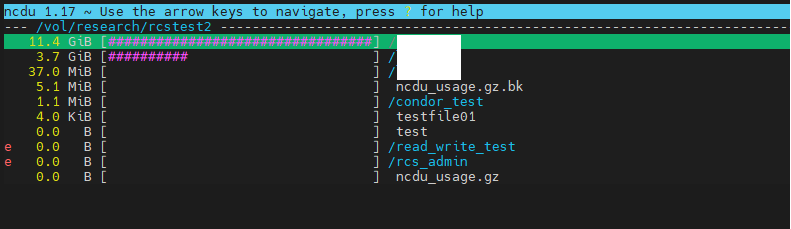
If you are running out of space and need to find which specific folders are consuming your quota, the ncdu (NCurses Disk Usage) tool provides a highly visual, navigable breakdown of your files:
ncdu /users/<username>